She said “curl”, I opened Terminal(cURL Explained)
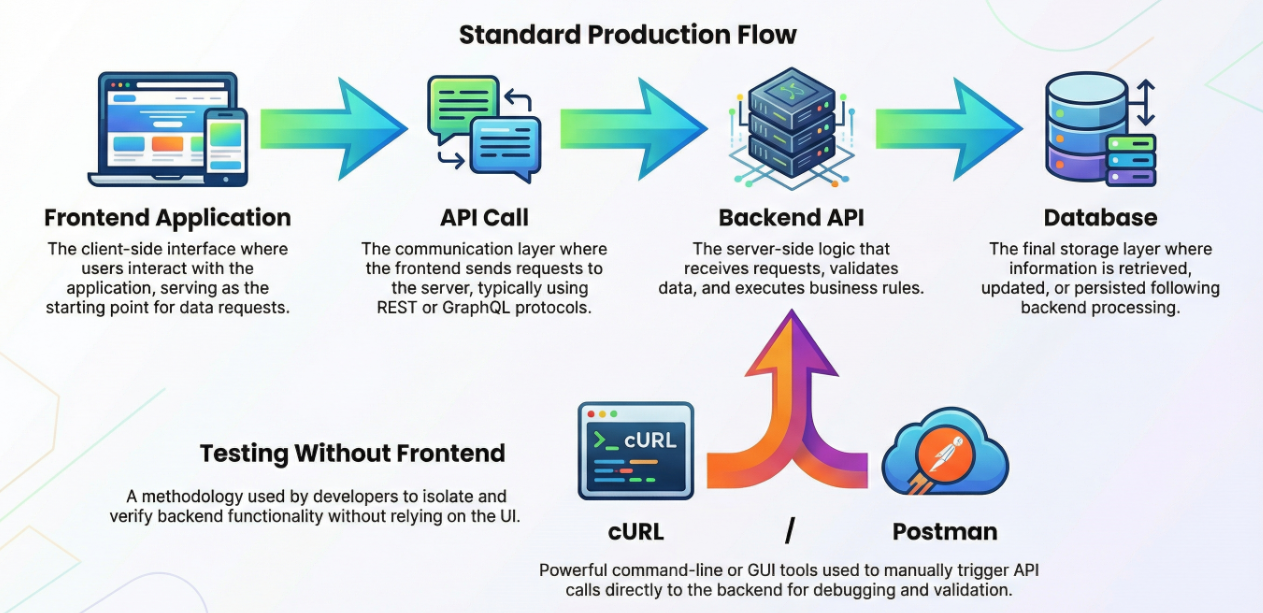
A server is basically a computer/system on the internet that stores data or provides services.
You talk to a server because:
you want a webpage (HTML)
you want data (JSON API)
you want to login/signup
you want to upload/download files
you want to send email, etc.
Example:
When you open google.com in a browser, your browser is requesting Google’s server:
“Send me the homepage.”
What does it mean to “send a request” to a server?
Client (you) → Server (internet computer)
You send an HTTP request like:
GET → “Give me data/page”
POST → “Create something”
PUT → “Update something”
DELETE → “Remove something”
Browser does this automatically in background.
But in development/testing, we want to send requests manually to understand what’s happening.
So how do we talk to a server from the terminal? (Connecting to cURL)
Now the question becomes:
“Browser ke bina, terminal se server ko message kaise bheje?”
Answer: cURL.
Sending a request from the terminal is an “API call” / “HTTP request”, and one of the tools used to send it is “curl”
cURL supports multiple protocols, not just HTTP.
Examples of what it supports:
HTTP / HTTPS
FTP / FTPS
SMTP / SMTPS
IMAP / IMAPS
POP3 / POP3S
SCP / SFTP
TFTP
LDAP / LDAPS
and more
So basically:
Server is waiting for requests
Client sends requests
cURL is a tool that lets you become the client via terminal
The simplest possible command: fetching a webpage
curl https://www.google.com
What happens here:
cURL sends an HTTP GET request by default
Google server replies with HTML
Terminal prints that HTML as output
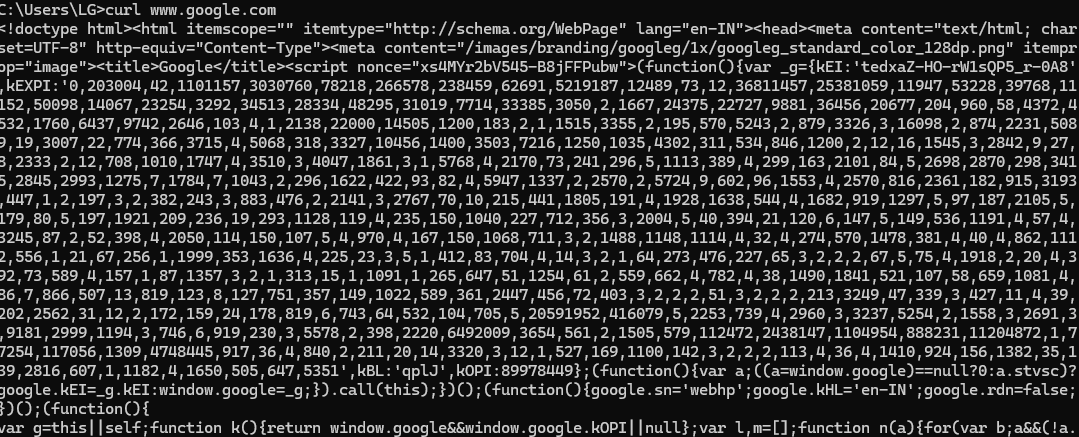
When you run curl https://www.google.com, cURL sends an HTTP GET request to Google’s server and prints the server’s response directly in the terminal.
By default, cURL shows only the response body, not the HTTP status code. In this case, the response body is the raw HTML content of Google’s homepage, including elements such as the <html>, <head>, and <script> sections that a browser would normally render into a webpage. To explicitly view the HTTP status and other response metadata (such as headers), you can use curl -I https://www.google.com, which returns details like 200 OK for a successful request or 301/302 for redirects.

GET and POST in cURL
When using cURL, the most common HTTP methods you’ll work with are GET and POST. By default, when you run a command like curl https://example.com, cURL sends a GET request, which means you are asking the server to return data (such as a webpage or API response).
curl -X POST https://jsonplaceholder.typicode.com/posts
  -H "Content-Type: application/json" \
  -d '{"title": "foo", "body": "bar", "userId": 1}'
In contrast, a POST request is used when you want to send data to the server, such as submitting a form or creating a new resource. In cURL, you typically use POST when you include data with the request (for example using -d), while GET is used for simple fetching and reading operations.

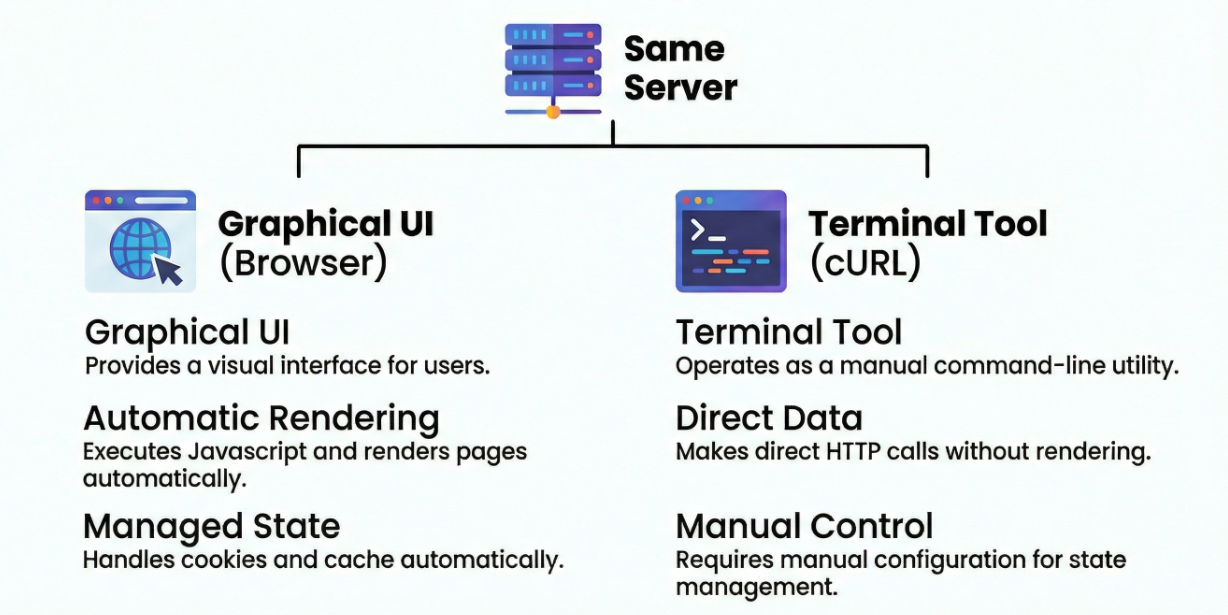
Browser vs. cURL Server Comparison
Common Mistakes Beginners Make with cURL
1) Forgetting to use https://
Many beginners type a domain name directly, assuming it is always enough. While it may work sometimes, it can lead to unexpected redirects or failures depending on DNS and server configuration. The safest approach is to always include the full protocol.
curl https://google.com
2) Expecting cURL to show the status code automatically
By default, cURL prints only the response body (such as HTML or JSON). It does not automatically display the HTTP status code. To view response metadata like status and headers, you should use the -I option.
curl -I https://example.com
3) Confusing GET and POST requests
A very common misunderstanding is assuming that every request is “curl.” In reality, GET and POST are HTTP methods, while cURL is just the tool. When you run curl URL, it sends a GET request by default. If you want to send data to the server (like form submission or creating a resource), you need a POST request.
curl -X POST https://api.example.com/login -d "user=a&pass=b"
4) Sending JSON without specifying the correct Content-Type
When sending JSON, beginners often forget to tell the server that the request body contains JSON. Many backends depend on the Content-Type: application/json header to parse the payload correctly. Without it, your request may fail or be read incorrectly.
curl -X POST https://api.example.com/users \
  -H "Content-Type: application/json" \
  -d '{"name":"A"}'
5) Not quoting URLs with query parameters
URLs containing query parameters often include &, which the shell can interpret as a special character. This causes the command to break or behave unexpectedly. Always wrap such URLs in quotes.
curl "https://api.example.com/search?q=phone&sort=asc"
6) Dumping large responses directly into the terminal
Some responses are extremely large, especially full HTML pages. Printing everything makes the output hard to read and can slow down your terminal. A better practice is to print only the first few lines for quick inspection.
curl -s https://example.com | head
7) Mixing up headers and body data options
Beginners sometimes place body content inside headers or try to send headers using the wrong flag. In cURL:
-His for headers-dis for request body data
Keeping this distinction clear avoids malformed requests.
8) Not handling redirects properly
Many websites respond with 301/302 redirects (for example, redirecting from HTTP to HTTPS). By default, cURL does not follow redirects automatically. If you want cURL to follow them and show the final response, you must use the -L flag.
curl -L https://example.com
Conclusion
Once you understand these basics, cURL becomes one of the fastest tools for testing APIs, debugging backend responses, and verifying real server behavior without relying on a browser or frontend UI.